

Next.js로 네이티브 앱 같은 웹앱 만들기
웹으로 앱을 만들고 싶다면?
웹 기술로 앱을 만들 수 있다는 거 알고 계셨나요? Next.js로 웹앱을 만들고, Expo나 Flutter의 웹뷰로 감싸면 바로 앱스토어에 출시할 수 있습니다.
하지만 웹앱의 가장 큰 약점이 있습니다. 바로 페이지 전환이 어색하다는 것.
네이티브 앱은 화면 전환이 자연스럽습니다. 리스트에서 상세로 들어갈 때 슬라이드되고, 이미지를 탭하면 확대되면서 열리죠. 하지만 웹은? 페이지가 그냥 뚝 바뀝니다.
만약 웹에서도 네이티브 같은 페이지 전환이 가능하다면? 그 웹앱은 진짜 앱처럼 느껴질 겁니다.
오늘은 Next.js로 네이티브 앱 같은 페이지 트랜지션이 들어간 웹앱을 만들어봅니다.
SSGOI란?
SSGOI(쓱오이)는 모든 브라우저에서 동작하는 페이지 트랜지션 라이브러리입니다.
Chrome의 View Transition API가 있지만, Safari와 Firefox에서는 동작하지 않습니다. SSGOI는 이 문제를 해결합니다.
SSGOI의 장점:
- 모든 모던 브라우저 지원 (Chrome, Firefox, Safari, Edge)
- SSR/SSG 완벽 호환
- 스프링 기반 물리 애니메이션으로 자연스러운 움직임
- 다양한 빌트인 트랜지션 (Drill, Slide, Pinterest, Instagram 등)
시작하기
SSGOI 공식 템플릿으로 시작해봅시다.
# 레포지토리 클론
git clone https://github.com/meursyphus/ssgoi

# 루트에서 의존성 설치 (중요!)
pnpm install

# Next.js 템플릿 폴더로 이동
cd templates/nextjs

# 개발 서버 실행
pnpm run dev
주의:
pnpm install은 반드시 루트 경로에서 실행해야 합니다. 모노레포 구조라서 루트에서 전체 의존성을 설치합니다.
브라우저에서 http://localhost:3000을 열면 템플릿 데모를 확인할 수 있습니다.
폴더 구조 살펴보기
templates/nextjs/ 폴더 구조입니다.
templates/nextjs/
├── src/
│   ├── app/
│   │   ├── layout.tsx          # 루트 레이아웃
│   │   ├── posts/              # Drill 트랜지션 예제
│   │   │   ├── page.tsx
│   │   │   └── [id]/page.tsx
│   │   ├── pinterest/          # Pinterest 트랜지션 예제
│   │   │   ├── page.tsx
│   │   │   └── [id]/page.tsx
│   │   ├── profile/            # Instagram 트랜지션 예제
│   │   │   ├── page.tsx
│   │   │   └── [id]/page.tsx
│   │   └── products/           # Slide 트랜지션 예제
│   │       ├── layout.tsx
│   │       └── [category]/page.tsx
│   └── components/
│       ├── demo-layout.tsx     # Ssgoi 설정 (핵심!)
│       ├── demo-wrapper.tsx    # 모바일 프레임 UI
│       ├── posts/
│       ├── pinterest/
│       ├── profile/
│       └── products/
핵심 파일은 demo-layout.tsx입니다. 모든 트랜지션 설정이 여기에 있습니다.
Ssgoi 설정하기
src/components/demo-layout.tsx를 열어보세요.
"use client";

import { Ssgoi } from "@ssgoi/react";
import { drill, pinterest, instagram } from "@ssgoi/react/view-transitions";
import { useMemo } from "react";

export default function DemoLayout({
  children,
}: {
  children: React.ReactNode;
}) {
  const config = useMemo(
    () => ({
      transitions: [
        // Pinterest 트랜지션
        {
          from: "/pinterest/*",
          to: "/pinterest",
          transition: pinterest(),
          symmetric: true,
        },
        // Posts - Drill 트랜지션
        {
          from: "/posts",
          to: "/posts/*",
          transition: drill({ direction: "enter" }),
        },
        {
          from: "/posts/*",
          to: "/posts",
          transition: drill({ direction: "exit" }),
        },
        // Profile - Instagram 트랜지션
        {
          from: "/profile",
          to: "/profile/*",
          transition: instagram(),
          symmetric: true,
        },
      ],
    }),
    [],
  );

  return (
    <main>
      <Ssgoi config={config}>{children}</Ssgoi>
    </main>
  );
}
config 구성:
from: 출발 경로 (*는 와일드카드)to: 도착 경로transition: 사용할 트랜지션symmetric: 역방향도 같은 트랜지션 적용
SsgoiTransition으로 페이지 감싸기
각 페이지는 SsgoiTransition으로 감싸고 고유한 id를 부여해야 합니다.
src/components/posts/index.tsx를 보면:
import { SsgoiTransition } from "@ssgoi/react";

export default function PostsDemo() {
  return (
    <SsgoiTransition id="/posts">
      <div className="min-h-screen bg-[#121212] px-4 py-6">
        {/* 포스트 목록 */}
      </div>
    </SsgoiTransition>
  );
}
src/components/posts/detail.tsx를 보면:
export default function PostDetail({ postId }: { postId: string }) {
  return (
    <SsgoiTransition id={`/posts/${postId}`}>
      <div className="min-h-screen bg-[#121212]">{/* 포스트 상세 */}</div>
    </SsgoiTransition>
  );
}
핵심:
id는 config의from/to와 매칭되어야 SSGOI가 트랜지션을 적용합니다.
Drill 트랜지션
리스트에서 상세로 들어가는 느낌의 트랜지션입니다.
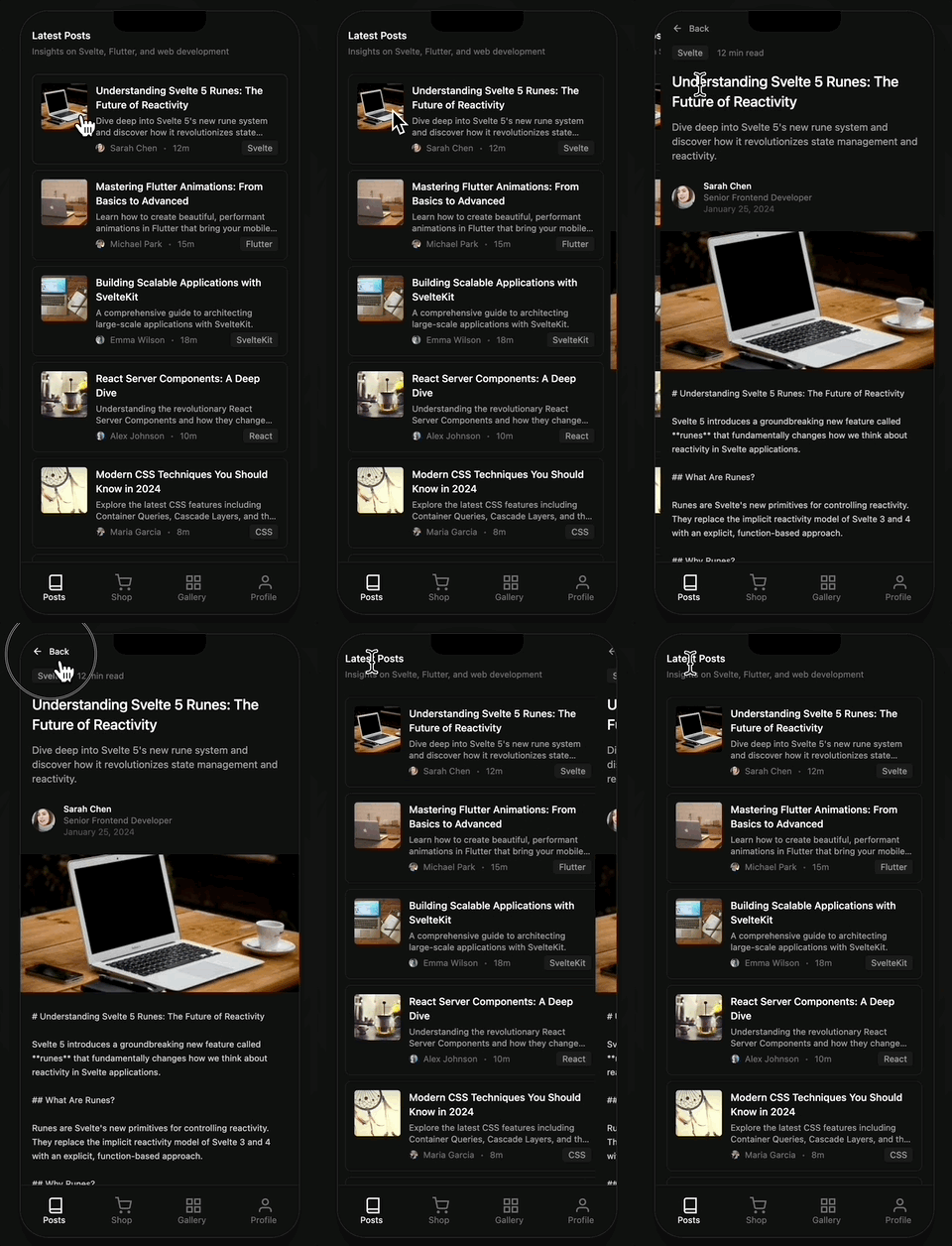
템플릿 위치: src/components/posts/
import { drill } from "@ssgoi/react/view-transitions";

// 리스트 → 상세 (들어갈 때)
drill({ direction: "enter" });

// 상세 → 리스트 (나올 때)
drill({ direction: "exit" });
config 설정:
{
  from: "/posts",
  to: "/posts/*",
  transition: drill({ direction: "enter" }),
},
{
  from: "/posts/*",
  to: "/posts",
  transition: drill({ direction: "exit" }),
},
옵션:
direction:"enter"|"exit"opacity:true면 페이드 효과 추가
Slide 트랜지션
탭 UI에서 좌우로 슬라이드하는 효과입니다.

템플릿 위치: src/app/products/layout.tsx
import { slide } from "@ssgoi/react/view-transitions";

// 왼쪽으로 슬라이드
slide({ direction: "left" });

// 오른쪽으로 슬라이드
slide({ direction: "right" });
products/layout.tsx에서는 중첩된 Ssgoi를 사용해 탭 영역만 트랜지션합니다:
export default function ProductsLayout({
  children,
}: {
  children: React.ReactNode;
}) {
  const config = useMemo(
    () => ({
      transitions: [
        {
          from: "/products/tab/left",
          to: "/products/tab/right",
          transition: slide({ direction: "left" }),
        },
        {
          from: "/products/tab/right",
          to: "/products/tab/left",
          transition: slide({ direction: "right" }),
        },
      ],
    }),
    [],
  );

  return (
    <SsgoiTransition id="/products">
      {/* 헤더, 탭 버튼 */}
      <div className="flex-1 overflow-hidden">
        <Ssgoi config={config}>{children}</Ssgoi>
      </div>
    </SsgoiTransition>
  );
}
Pinterest 트랜지션
갤러리 이미지가 확대되면서 상세로 전환되는 효과입니다.
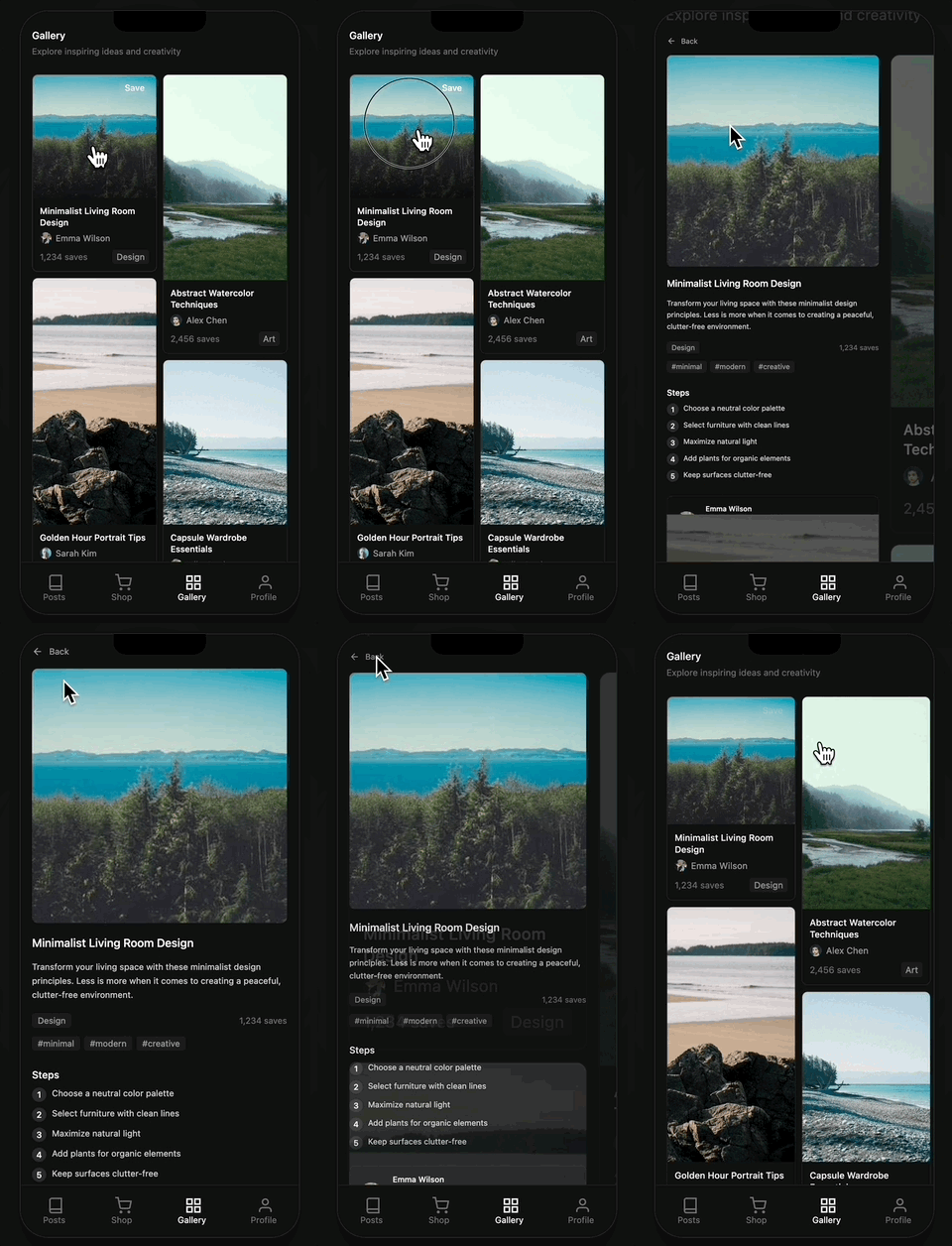
템플릿 위치: src/components/pinterest/
Data 어트리뷰트 설정 (필수!)
Pinterest 트랜지션은 data 어트리뷰트로 어떤 이미지끼리 연결되는지 지정해야 합니다.
src/components/pinterest/index.tsx (갤러리):
function PinCard({ item }: { item: PinterestItem }) {
  return (
    <Link href={`/pinterest/${item.id}`}>
      <div className="relative" style={{ aspectRatio: item.aspectRatio }}>
        <img
          src={item.image}
          alt={item.title}
          className="w-full h-full object-cover"
          data-pinterest-gallery-key={item.id}
        />
      </div>
    </Link>
  );
}
src/components/pinterest/detail.tsx (상세):
export default function PinterestDetail({ pinId }: { pinId: string }) {
  const item = getPinterestItem(pinId);

  return (
    <SsgoiTransition id={`/pinterest/${pinId}`}>
      <img
        src={item.image}
        alt={item.title}
        style={{ aspectRatio: item.aspectRatio }}
        data-pinterest-detail-key={item.id}
      />
    </SsgoiTransition>
  );
}
핵심:
data-pinterest-gallery-key와data-pinterest-detail-key에 같은 id를 넣어야 SSGOI가 연결을 인식합니다.
config 설정:
{
  from: "/pinterest/*",
  to: "/pinterest",
  transition: pinterest(),
  symmetric: true,
}
Instagram 트랜지션
프로필 피드 그리드에서 상세로 전환되는 효과입니다. Pinterest와 비슷하지만, 갤러리가 그대로 유지됩니다.
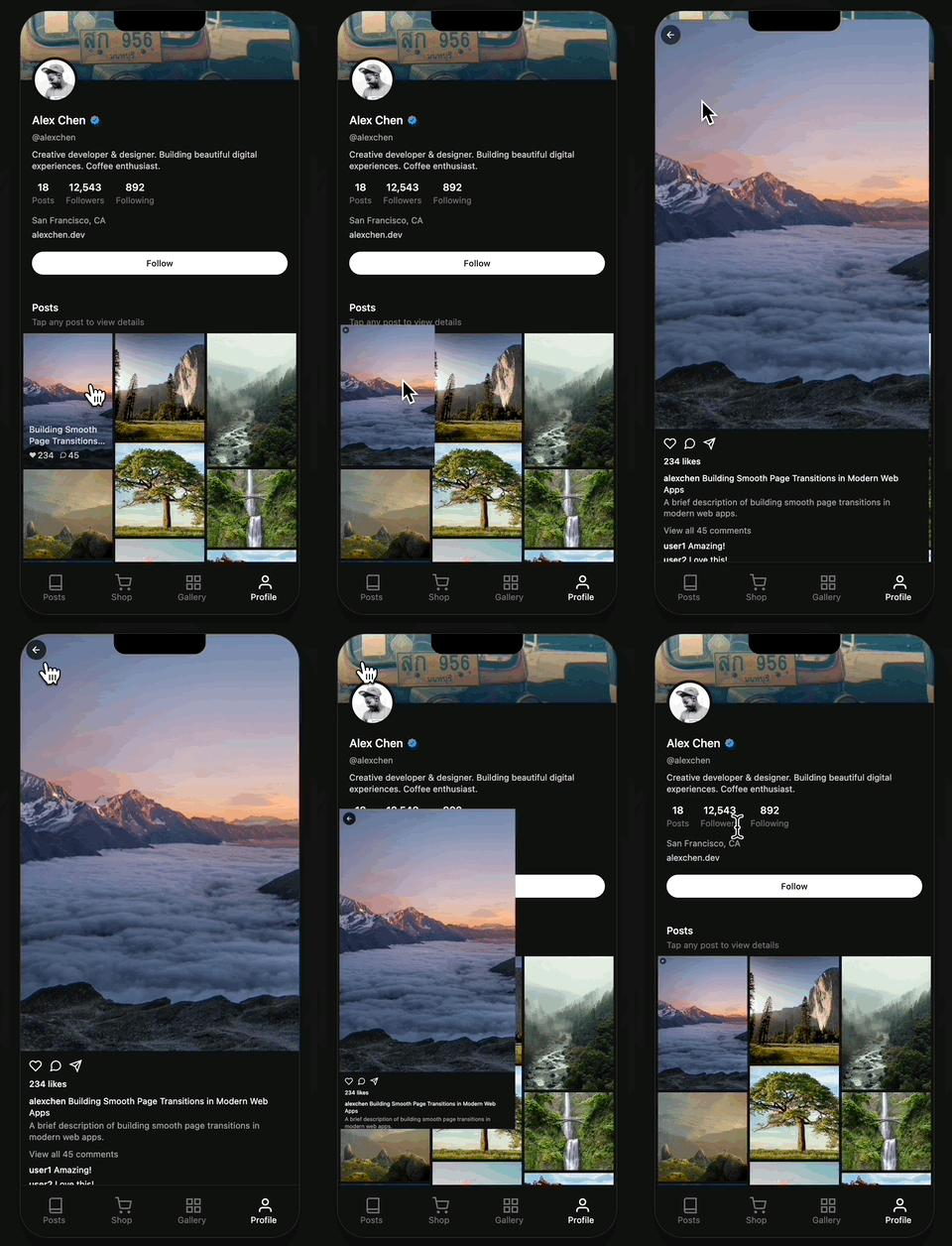
템플릿 위치: src/components/profile/
Data 어트리뷰트 설정
src/components/profile/feed.tsx (그리드):
function PostCard({ post }: { post: Post }) {
  return (
    <Link href={`/profile/${post.id}`}>
      <img
        src={post.coverImage.url}
        alt={post.title}
        className="w-full h-auto object-cover"
        data-instagram-gallery-key={post.id}
      />
    </Link>
  );
}
src/components/profile/feed-detail.tsx (상세):
export default function FeedDetail({ postId }: { postId: string }) {
  const post = getPost(postId);

  return (
    <SsgoiTransition id={`/profile/${postId}`}>
      <img
        src={post.coverImage.url}
        alt={post.title}
        data-instagram-detail-key={post.id}
      />
    </SsgoiTransition>
  );
}
config 설정:
{
  from: "/profile",
  to: "/profile/*",
  transition: instagram(),
  symmetric: true,
}
Spring 옵션으로 타이밍 조절하기
모든 트랜지션은 스프링 기반 물리 애니메이션을 사용합니다. spring 옵션으로 속도와 느낌을 조절할 수 있습니다.
drill({
  direction: "enter",
  spring: {
    stiffness: 200, // 높을수록 빠름
    damping: 20, // 높을수록 덜 튕김
    doubleSpring: true, // ease-in-out 효과 켜기
  },
});
Spring 옵션 설명
| 옵션 | 설명 | 효과 |
|---|---|---|
stiffness | 강성 | 높을수록 빠르고 즉각적 |
damping | 감쇠 | 높을수록 덜 튕기고 부드러움 |
doubleSpring | 더블 스프링 | true/false - ease-in-out 효과 |
doubleSpring이란? CSS의 ease-in-out처럼 시작과 끝이 부드러운 효과입니다. 자세한 내용은 Double Spring 블로그 글을 참고하세요.
유용한 옵션들
symmetric 옵션
양방향 트랜지션을 자동 설정합니다.
// 이렇게 하나만 설정하면
{
  from: "/pinterest/*",
  to: "/pinterest",
  transition: pinterest(),
  symmetric: true,
}

// 역방향도 자동 적용됩니다
와일드카드 라우트
*로 모든 하위 경로를 매칭합니다.
// /posts/1, /posts/abc 모두 매칭
{ from: "/posts", to: "/posts/*", ... }
마무리
이제 여러분도 Next.js 웹앱에 네이티브 같은 페이지 트랜지션을 적용할 수 있습니다!
리소스
- GitHub: https://github.com/meursyphus/ssgoi
- 공식 문서: https://ssgoi.dev
- Next.js 템플릿: https://github.com/meursyphus/ssgoi/tree/main/templates/nextjs
웹뷰로 감싸서 진짜 앱으로 만들어보세요!