

React Routerでネイティブアプリのようなウェブアプリを作る
ウェブでアプリを作りたいなら?
ウェブ技術でアプリを作れることをご存知でしたか?React Routerでウェブアプリを作り、ExpoやFlutterのWebViewでラップすれば、すぐにApp Storeにリリースできます。
しかし、ウェブアプリには最大の弱点があります。それはページ遷移が不自然だということです。
ネイティブアプリは画面遷移が自然です。リストから詳細へ入るときはスライドし、画像をタップすると拡大しながら開きます。しかしウェブは?ページがただパッと切り替わります。
**もしウェブでもネイティブのようなページ遷移が可能なら?**そのウェブアプリは本物のアプリのように感じられるでしょう。
今日はReact Routerでネイティブアプリのようなページトランジションを持つウェブアプリを作ってみます。
SSGOIとは?
SSGOI(スゴイ)はすべてのブラウザで動作するページトランジションライブラリです。
ChromeのView Transition APIがありますが、SafariとFirefoxでは動作しません。SSGOIはこの問題を解決します。
SSGOIの利点:
- すべてのモダンブラウザをサポート(Chrome、Firefox、Safari、Edge)
- SSR/SSG完全対応
- スプリングベースの物理アニメーションで自然な動き
- 多様なビルトイントランジション(Drill、Slide、Pinterest、Instagramなど)
はじめに
SSGOI公式テンプレートから始めましょう。
# リポジトリをクローン
git clone https://github.com/meursyphus/ssgoi

# ルートで依存関係をインストール(重要!)
pnpm install

# React Routerテンプレートフォルダへ移動
cd templates/react-router

# 開発サーバーを起動
pnpm run dev
注意:
pnpm installは必ずルートパスで実行してください。モノレポ構造のため、ルートで全体の依存関係をインストールします。
ブラウザでhttp://localhost:5173を開くと、テンプレートデモを確認できます。
フォルダ構造を見る
templates/react-router/フォルダ構造です。
templates/react-router/
├── app/
│   ├── root.tsx                # ルートレイアウト
│   ├── routes.ts               # ルート定義
│   ├── routes/                 # ページルート
│   │   ├── home.tsx
│   │   ├── posts.tsx           # Drillトランジション例
│   │   ├── posts.$postId.tsx
│   │   ├── pinterest.tsx       # Pinterestトランジション例
│   │   ├── pinterest.$pinId.tsx
│   │   ├── profile.tsx         # Instagramトランジション例
│   │   ├── profile.$postId.tsx
│   │   ├── products.tsx
│   │   ├── products_.layout.tsx # Slideトランジション例
│   │   └── products_*.tsx
│   └── components/
│       ├── demo-layout.tsx     # Ssgoi設定(核心!)
│       ├── demo-wrapper.tsx    # モバイルフレームUI
│       ├── posts/
│       ├── pinterest/
│       ├── profile/
│       └── products/
核心ファイルはdemo-layout.tsxです。すべてのトランジション設定がここにあります。
Ssgoiを設定する
app/components/demo-layout.tsxを開いてください。
import React, { useMemo } from "react";
import { Link, useLocation } from "react-router";
import { Ssgoi } from "@ssgoi/react";
import {
  drill,
  pinterest,
  instagram,
} from "@ssgoi/react/view-transitions";

export default function DemoLayout({ children }: { children: React.ReactNode }) {
  const location = useLocation();
  const pathname = location.pathname;

  const config = useMemo(
    () => ({
      transitions: [
        // Pinterestトランジション
        {
          from: "/pinterest/*",
          to: "/pinterest",
          transition: pinterest(),
          symmetric: true,
        },
        // Posts - Drillトランジション
        {
          from: "/posts",
          to: "/posts/*",
          transition: drill({ direction: "enter" }),
        },
        {
          from: "/posts/*",
          to: "/posts",
          transition: drill({ direction: "exit" }),
        },
        // Profile - Instagramトランジション
        {
          from: "/profile",
          to: "/profile/*",
          transition: instagram(),
          symmetric: true,
        },
      ],
    }),
    [],
  );

  return (
    <div className="h-full bg-[#121212] flex z-0">
      <div className="w-full bg-[#121212] flex flex-col overflow-hidden relative">
        <main className="flex-1 w-full overflow-y-scroll overflow-x-hidden relative z-0 bg-[#121212]">
          <Ssgoi config={config}>{children}</Ssgoi>
        </main>
        {/* ナビゲーションバー */}
      </div>
    </div>
  );
}
config構成:
from: 出発パス(*はワイルドカード)to: 到着パスtransition: 使用するトランジションsymmetric: 逆方向も同じトランジションを適用
SsgoiTransitionでページをラップする
各ページはSsgoiTransitionでラップし、固有のidを付与する必要があります。
app/components/posts/index.tsxを見ると:
import { SsgoiTransition } from "@ssgoi/react";
import { Link } from "react-router";

export default function PostsDemo() {
  return (
    <SsgoiTransition id="/posts">
      <div className="min-h-full bg-[#121212] px-4 py-6">
        {/* ポストリスト */}
      </div>
    </SsgoiTransition>
  );
}
app/components/posts/detail.tsxを見ると:
export default function PostDetail({ postId }: { postId: string }) {
  return (
    <SsgoiTransition id={`/posts/${postId}`}>
      <div className="min-h-screen bg-[#121212]">{/* ポスト詳細 */}</div>
    </SsgoiTransition>
  );
}
核心:
idはconfigのfrom/toとマッチする必要があり、SSGOIがトランジションを適用します。
Drillトランジション
リストから詳細へ入る感じのトランジションです。
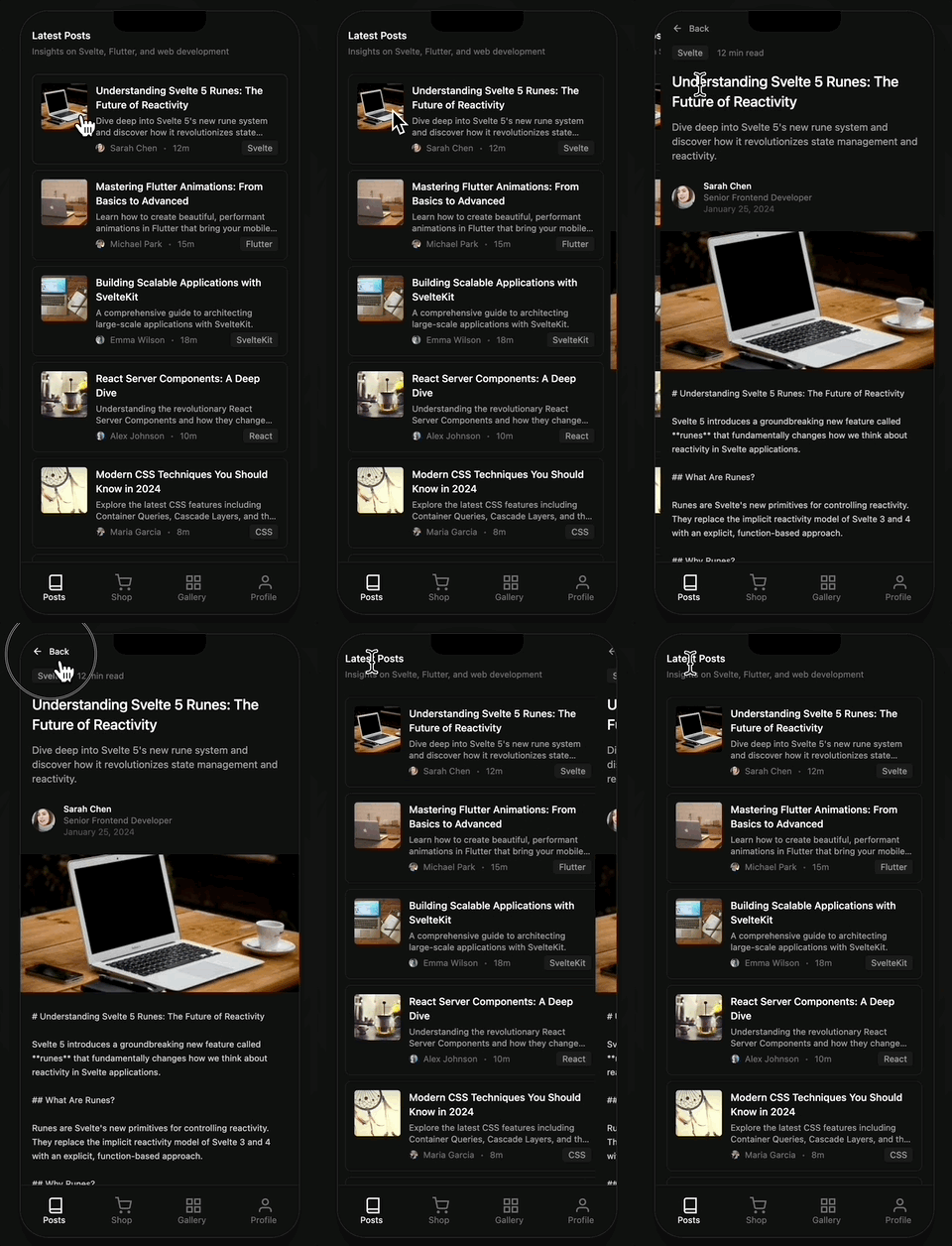
テンプレート位置: app/components/posts/
import { drill } from "@ssgoi/react/view-transitions";

// リスト → 詳細(入るとき)
drill({ direction: "enter" });

// 詳細 → リスト(出るとき)
drill({ direction: "exit" });
config設定:
{
  from: "/posts",
  to: "/posts/*",
  transition: drill({ direction: "enter" }),
},
{
  from: "/posts/*",
  to: "/posts",
  transition: drill({ direction: "exit" }),
},
オプション:
direction:"enter"|"exit"opacity:trueならフェード効果を追加
Slideトランジション
タブUIで左右にスライドする効果です。

テンプレート位置: app/routes/products_.layout.tsx
import { slide } from "@ssgoi/react/view-transitions";

// 左へスライド
slide({ direction: "left" });

// 右へスライド
slide({ direction: "right" });
products_.layout.tsxでは、ネストされたSsgoiを使用してタブ領域のみトランジションします:
import { Outlet, useLocation } from "react-router";
import { Ssgoi, SsgoiTransition } from "@ssgoi/react";
import { slide } from "@ssgoi/react/view-transitions";

export default function ProductsLayout() {
  const location = useLocation();
  const pathname = location.pathname;

  const config = useMemo(
    () => ({
      transitions: [
        {
          from: "/products/tab/left",
          to: "/products/tab/right",
          transition: slide({ direction: "left" }),
        },
        {
          from: "/products/tab/right",
          to: "/products/tab/left",
          transition: slide({ direction: "right" }),
        },
      ],
      middleware: (from: string, to: string) => {
        const fromIndex = categories.findIndex((c) => c.path === from);
        const toIndex = categories.findIndex((c) => c.path === to);

        if (fromIndex !== -1 && toIndex !== -1 && fromIndex !== toIndex) {
          if (fromIndex < toIndex) {
            return { from: "/products/tab/left", to: "/products/tab/right" };
          } else {
            return { from: "/products/tab/right", to: "/products/tab/left" };
          }
        }

        return { from, to };
      },
    }),
    [],
  );

  return (
    <SsgoiTransition id="/products">
      {/* ヘッダー、タブボタン */}
      <div className="flex-1 overflow-hidden">
        <Ssgoi config={config}>
          <Outlet />
        </Ssgoi>
      </div>
    </SsgoiTransition>
  );
}
Pinterestトランジション
ギャラリー画像が拡大しながら詳細へ遷移する効果です。
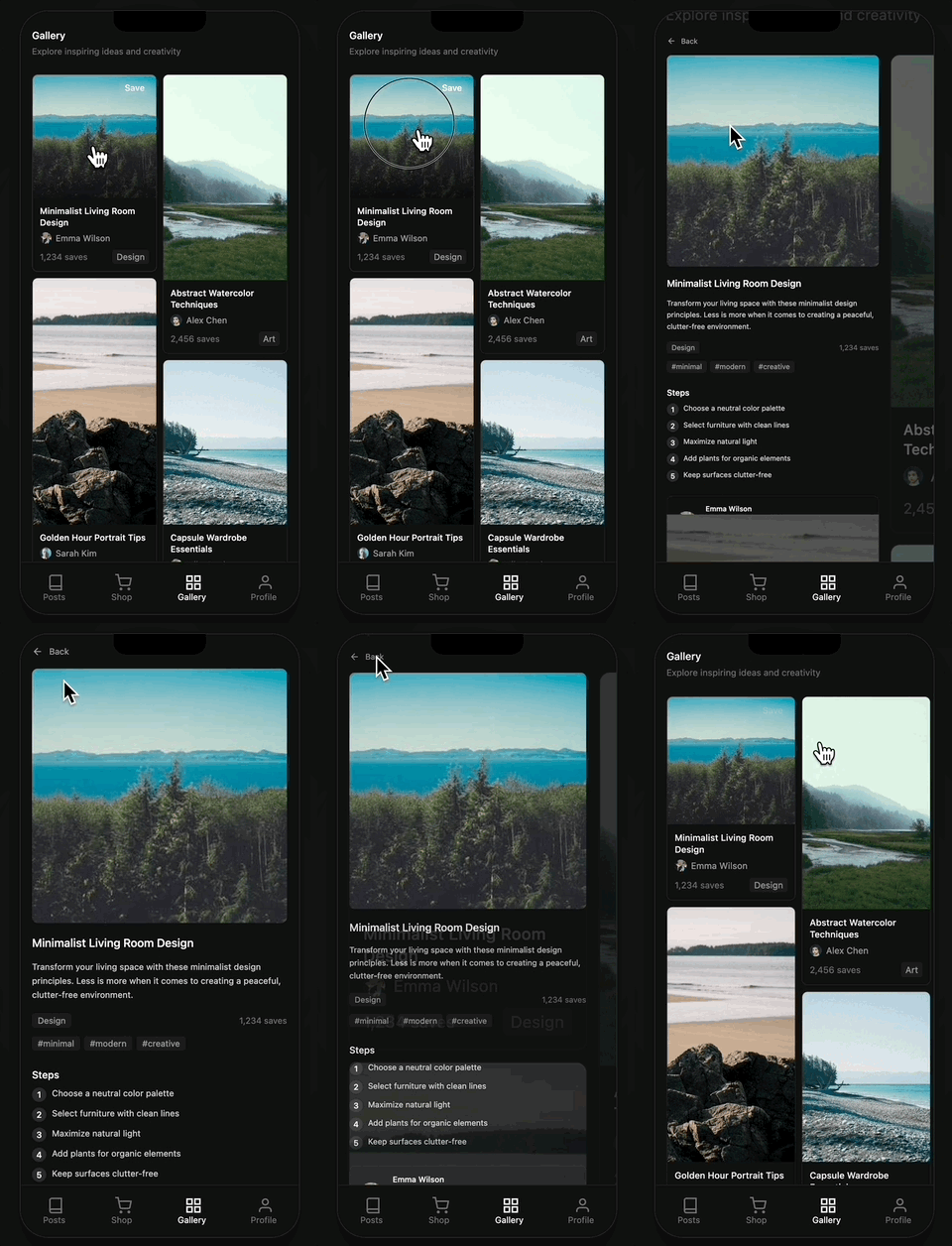
テンプレート位置: app/components/pinterest/
Data属性設定(必須!)
Pinterestトランジションはdata属性でどの画像同士が接続されるかを指定する必要があります。
app/components/pinterest/index.tsx(ギャラリー):
function PinCard({ item }: { item: PinterestItem }) {
  return (
    <Link to={`/pinterest/${item.id}`}>
      <div className="relative" style={{ aspectRatio: item.aspectRatio }}>
        <img
          src={item.image}
          alt={item.title}
          className="w-full h-full object-cover"
          data-pinterest-gallery-key={item.id}
        />
      </div>
    </Link>
  );
}
app/components/pinterest/detail.tsx(詳細):
export default function PinterestDetail({ pinId }: { pinId: string }) {
  const item = getPinterestItem(pinId);

  return (
    <SsgoiTransition id={`/pinterest/${pinId}`}>
      <img
        src={item.image}
        alt={item.title}
        style={{ aspectRatio: item.aspectRatio }}
        data-pinterest-detail-key={item.id}
      />
    </SsgoiTransition>
  );
}
核心:
data-pinterest-gallery-keyとdata-pinterest-detail-keyに同じidを入れる必要があり、SSGOIが接続を認識します。
config設定:
{
  from: "/pinterest/*",
  to: "/pinterest",
  transition: pinterest(),
  symmetric: true,
}
Instagramトランジション
プロフィールフィードグリッドから詳細へ遷移する効果です。Pinterestと似ていますが、ギャラリーがそのまま維持されます。

テンプレート位置: app/components/profile/
Data属性設定
app/components/profile/feed.tsx(グリッド):
function PostCard({ post }: { post: Post }) {
  return (
    <Link to={`/profile/${post.id}`}>
      <img
        src={post.coverImage.url}
        alt={post.title}
        className="w-full h-auto object-cover"
        data-instagram-gallery-key={post.id}
      />
    </Link>
  );
}
app/components/profile/feed-detail.tsx(詳細):
export default function FeedDetail({ postId }: { postId: string }) {
  const post = getPost(postId);

  return (
    <SsgoiTransition id={`/profile/${postId}`}>
      <img
        src={post.coverImage.url}
        alt={post.title}
        data-instagram-detail-key={post.id}
      />
    </SsgoiTransition>
  );
}
config設定:
{
  from: "/profile",
  to: "/profile/*",
  transition: instagram(),
  symmetric: true,
}
Springオプションでタイミングを調整する
すべてのトランジションはスプリングベースの物理アニメーションを使用します。springオプションで速度と感触を調整できます。
drill({
  direction: "enter",
  spring: {
    stiffness: 200, // 高いほど速い
    damping: 20, // 高いほど跳ねにくい
    doubleSpring: true, // ease-in-out効果をオン
  },
});
Springオプション説明
| オプション | 説明 | 効果 |
|---|---|---|
stiffness | 剛性 | 高いほど速く即座に |
damping | 減衰 | 高いほど跳ねにくく滑らか |
doubleSpring | ダブルスプリング | true/false - ease-in-out効果 |
doubleSpringとは? CSSのease-in-outのように開始と終了が滑らかな効果です。詳細はDouble Springブログ記事を参照してください。
便利なオプション
symmetricオプション
双方向トランジションを自動設定します。
// このように1つだけ設定すれば
{
  from: "/pinterest/*",
  to: "/pinterest",
  transition: pinterest(),
  symmetric: true,
}

// 逆方向も自動適用されます
ワイルドカードルート
*ですべてのサブパスをマッチングします。
// /posts/1, /posts/abc すべてマッチ
{ from: "/posts", to: "/posts/*", ... }
まとめ
これで皆さんもReact Routerウェブアプリにネイティブのようなページトランジションを適用できます!
リソース
- GitHub: https://github.com/meursyphus/ssgoi
- 公式ドキュメント: https://ssgoi.dev
- React Routerテンプレート: https://github.com/meursyphus/ssgoi/tree/main/templates/react-router
WebViewでラップして本物のアプリにしてみてください!